Download PixelForge for Windows
The professional photo editor for Windows 10 and Windows 11. PixelForge 1.0 is released on November 20, 2026.
Coming November 20, 2026
Download opens on November 20, 2026
PixelForge is in its final stage of development. The Windows installer will be published here on release day — bookmark this page and come back on November 20, 2026.
System requirements
- Operating system
- Windows 10 (22H2) or Windows 11, 64-bit
- Processor
- 64-bit processor
- Memory
- 8 GB RAM (16 GB recommended)
- Graphics
- DirectX 12 GPU with 2 GB VRAM
- Storage
- 4 GB of available space (SSD recommended)
- Display
- 1280 x 800 or higher, high-DPI supported
What you get
One installer with the complete editor — no add-ons, no separate modules.
The complete editor
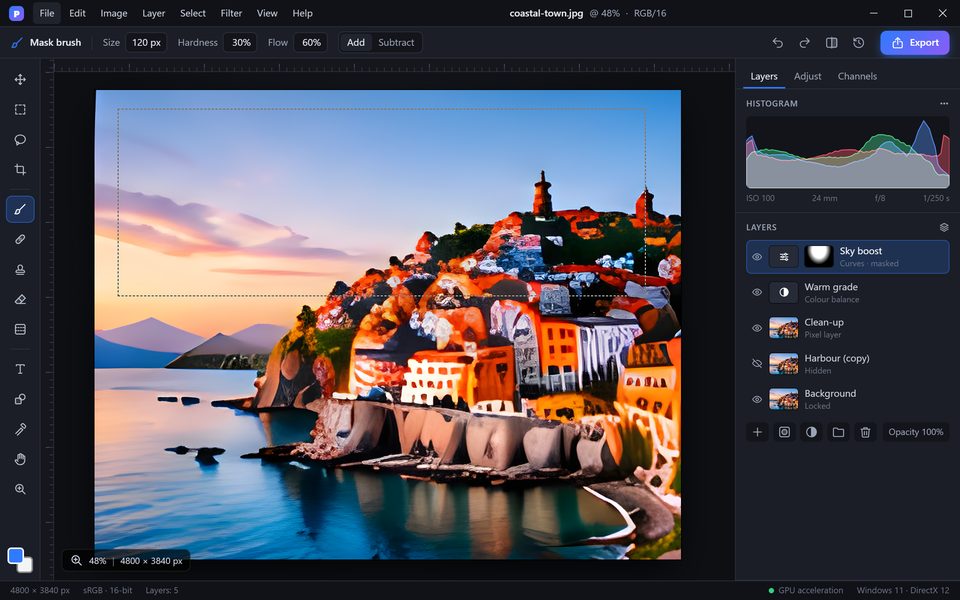
Layers, masks, selections, retouching, RAW, brushes, text, vector and AI tools.
PSD and RAW support
Open and save layered PSD files and develop RAW photos from current cameras.
Native Windows app
GPU acceleration with DirectX 12, high-DPI and HDR displays, pen and touch.
Your files stay local
Images are processed on your PC, and PixelForge works offline.
How to install PixelForge
- Download the PixelForge installer for Windows.
- Run the installer and choose where to install PixelForge.
- Start PixelForge from the Start menu and open your first photo.
New to PixelForge? Start with the tutorials or read about all features.
Frequently asked questions
Quick answers about PixelForge for Windows.
Is PixelForge free?
Yes. PixelForge is free to download and use on Windows 10 and Windows 11 — no trial, no subscription and no watermarks. The download opens on November 20, 2026.
Which versions of Windows does PixelForge support?
PixelForge runs on 64-bit Windows 10 (version 22H2) and Windows 11. It is a native Windows application that uses DirectX 12 for GPU acceleration.
Can PixelForge open my Photoshop (PSD) files?
Yes. PixelForge opens and saves PSD and PSB documents with layers, groups, masks, adjustment layers, text layers and smart objects, so you can continue existing projects without converting them.
Is PixelForge a good alternative to Adobe Photoshop?
For most photo editing and design work, yes. PixelForge offers layers and masks, PSD files, RAW development, retouching, brushes, text, vector shapes and AI tools in a native Windows app, without a subscription.
Can I use my Photoshop brushes, actions and plug-ins?
You can import .abr brushes and .cube LUTs, use compatible .8bf filter plug-ins and switch on a familiar shortcut preset, so your existing tools and habits carry over.
What are the system requirements?
A 64-bit processor, 8 GB of RAM (16 GB recommended), a DirectX 12 compatible graphics card with 2 GB of video memory, 4 GB of available disk space and a 1280 x 800 display or larger.
Do the AI tools upload my photos?
No. PixelForge processes your images locally on your PC, and nothing leaves your computer unless you choose to share or upload it yourself.
Does PixelForge support RAW files?
Yes. RAW files from most current cameras and DNG files open directly in the develop module, where all adjustments remain editable.
Can I use a graphics tablet?
Yes. PixelForge supports Windows Ink and Wacom tablets with pressure, tilt and rotation, as well as touch gestures for zooming and rotating the canvas.
Can I automate repetitive work?
Record actions, run batch processing on whole folders, convert files with the Image Processor or write your own scripts in JavaScript.
Does PixelForge work offline?
Yes. Editing, retouching, RAW development and export work without an internet connection, and your files stay on your PC.