A Photoshop alternative for Windows
PixelForge gives you the professional toolset you know from Adobe Photoshop — layers and masks, PSD files, RAW development, retouching, brushes and AI tools — in a native Windows application without a subscription.
PixelForge vs Photoshop at a glance
The tools you rely on every day, side by side.
| Feature | PixelForge | Adobe Photoshop |
|---|---|---|
| Price | Free | Subscription |
| Account required to edit | No | Adobe account |
| Layers, groups, masks and blend modes | ||
| Adjustment layers and smart filters | ||
| Open and save PSD / PSB with layers | ||
| RAW development | ||
| Healing brush, clone stamp, content-aware fill | ||
| AI object removal and Select Subject | ||
| Generative fill | ||
| Actions, batch processing and scripting | ||
| .abr brushes and .cube LUTs | ||
| .8bf filter plug-ins |
Comparison based on publicly documented features. Adobe and Photoshop are trademarks of Adobe Inc.
Switching from Photoshop
Keep your files, tools and habits.
Bring your PSD files
Open existing projects directly — layers, masks, adjustment layers, text and smart objects stay editable.
Keep your shortcuts
Turn on the familiar shortcut preset in Settings > Keyboard and work the way you are used to.
Import brushes and looks
Drag .abr brush sets and .cube LUTs into PixelForge to keep your favourite tools.
Reuse your plug-ins
Point PixelForge to your .8bf filter folder in Settings > Plug-ins.
Photoshop features and their PixelForge equivalents
Know a tool in Photoshop? Here is where to find it in PixelForge.
| In Photoshop | In PixelForge |
|---|---|
| Content-Aware Fill | Content-Aware Fill and AI Remove |
| Generative Fill / Generative Expand | Generative Fill / Generative Expand |
| Neural Filters | AI tools: Neural Denoise, portrait relighting, Super Resolution |
| Camera Raw | RAW develop module |
| Smart Objects and Smart Filters | Smart objects and smart filters |
| Adjustment Layers | Adjustment and fill layers |
| Select Subject / Select Sky | Select Subject / Select Sky |
| Select and Mask | Refine Edge workspace |
| Liquify | Liquify with face-aware sliders |
| Puppet Warp / Perspective Warp | Puppet Warp / Perspective Warp |
| Photomerge / Merge to HDR | Panorama stitching / Merge to HDR |
| Actions, Batch, Image Processor | Actions, Batch, Image Processor |
| Export As / Artboards | Export As with live file size / Artboards |
Open PSD files without Photoshop
Layers, masks, text and smart objects stay editable.
Photoshop shortcuts in PixelForge
The full keyboard cheat sheet.
Remove a background
Select Subject and Refine Edge, step by step.
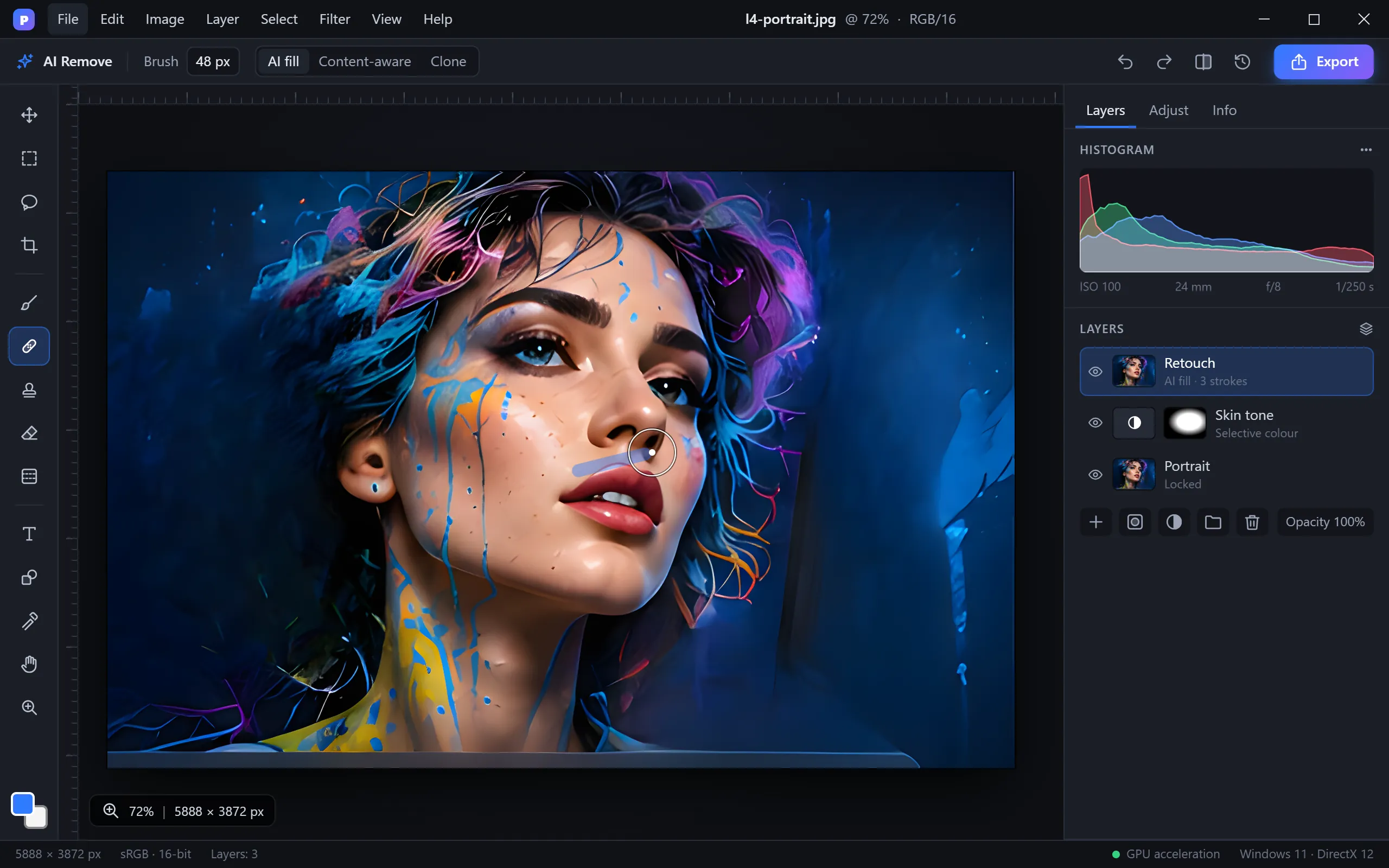
Remove objects from photos
The PixelForge answer to Content-Aware Fill.
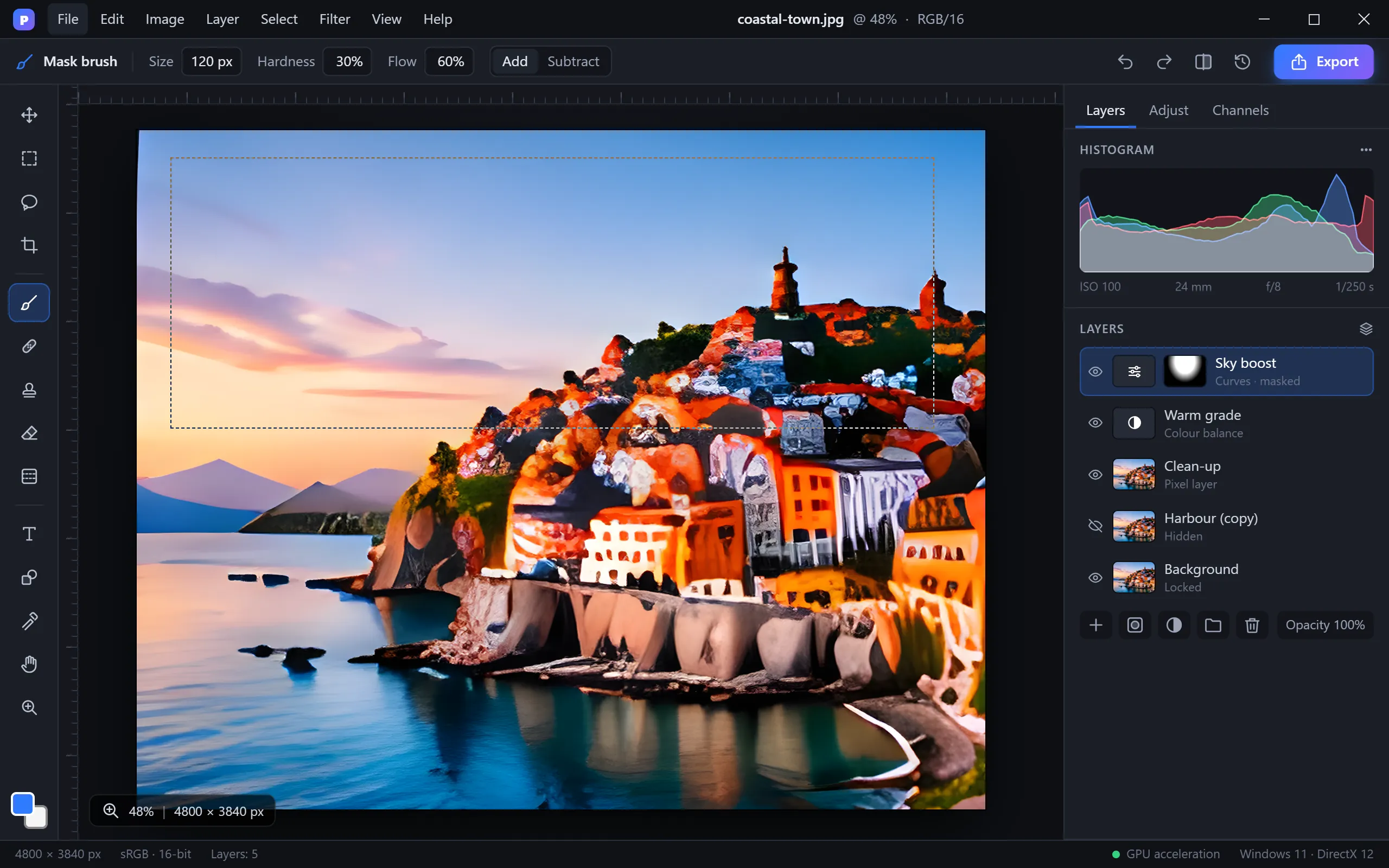
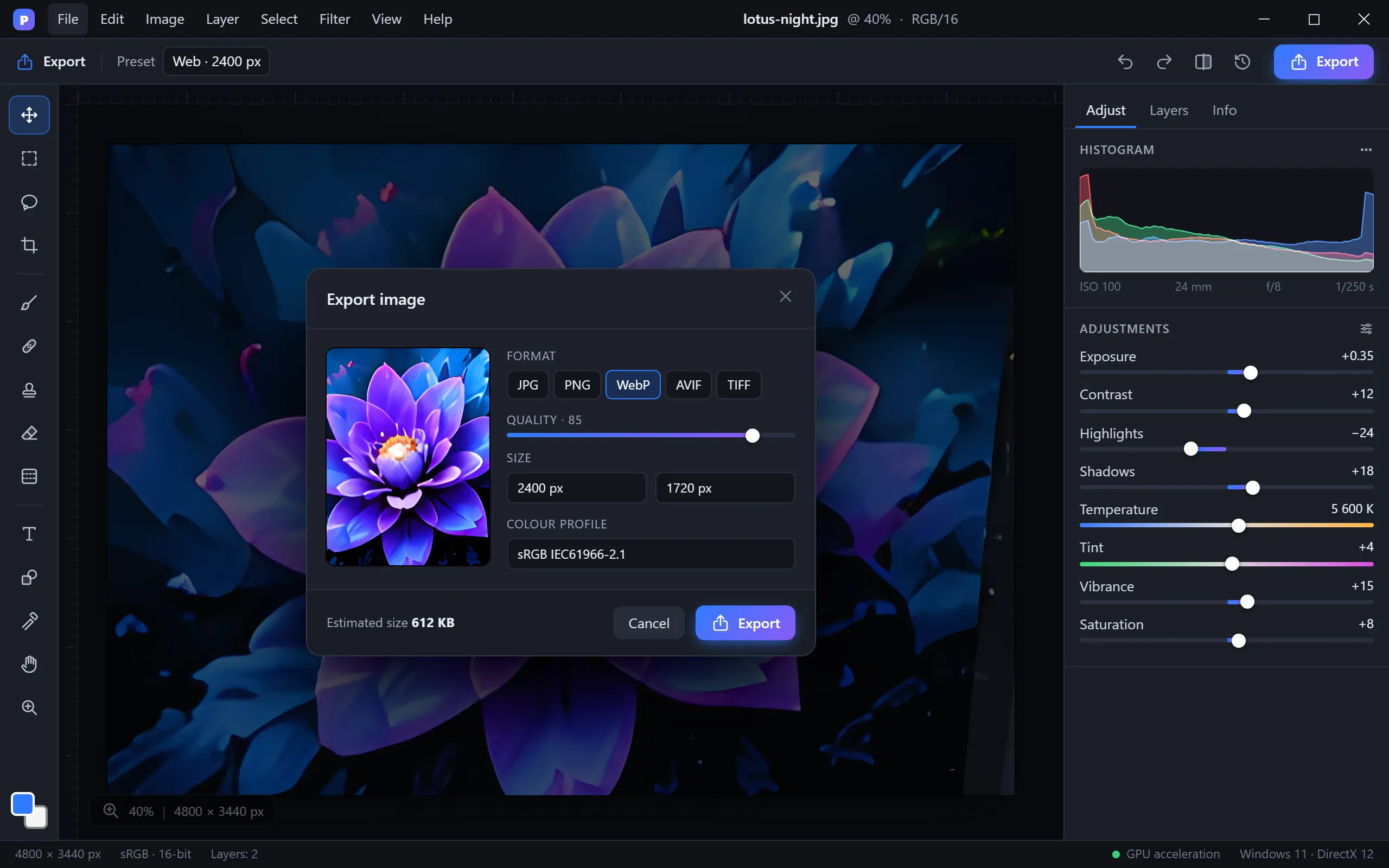
Screenshots
A clean, dark workspace that keeps the focus on your photo.
Switching from Photoshop — questions
Is PixelForge a free alternative to Photoshop?
Yes. PixelForge is free to download and use on Windows 10 and 11, with layers, masks, PSD support, RAW development, retouching and AI tools.
Can PixelForge open Photoshop files?
Yes. PSD and PSB files open with layers, masks, adjustment layers, text and smart objects, and you can save them back to PSD.
Do Photoshop keyboard shortcuts work in PixelForge?
Turn on the familiar shortcut preset in Settings > Keyboard and the shortcuts you know — V, B, Ctrl+J, Ctrl+T, Ctrl+M and many more — work the same way.
Can I use Photoshop brushes and plug-ins?
You can import .abr brush sets and .cube LUTs and use compatible .8bf filter plug-ins.
Is PixelForge made by Adobe?
No. PixelForge is an independent photo editor and is not affiliated with or endorsed by Adobe Inc.
Get PixelForge for Windows
Release November 20, 2026 · Windows 10 & 11 · 64-bit