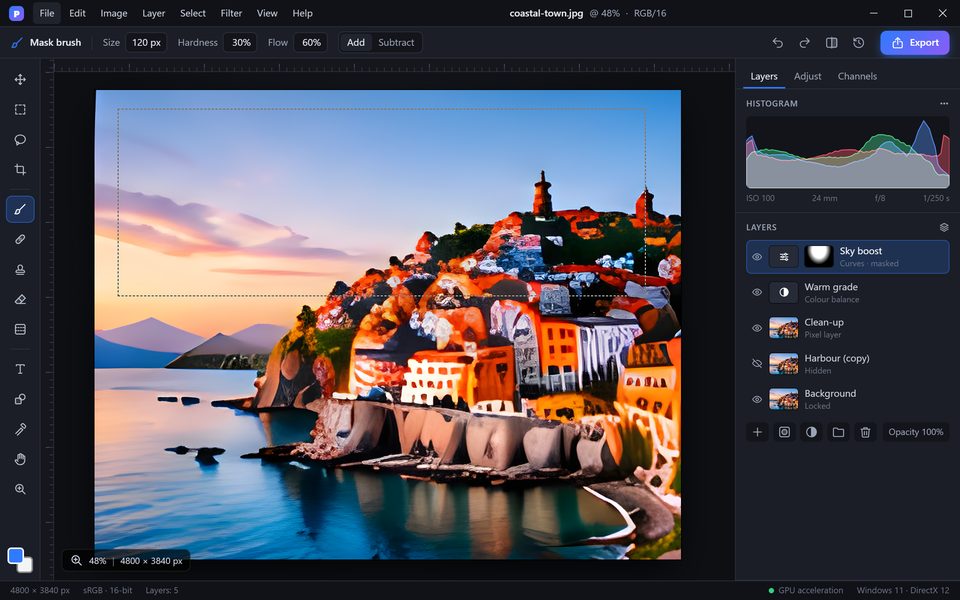
Step by step
Open Sky Replacement
With the photo open choose Edit > Sky Replacement. PixelForge detects the sky automatically and shows a live preview.
Choose the new sky
Pick a sky from the built-in collection (blue skies, spectacular, sunsets) or click "Add sky" to use one of your own photos.
Blend the edge
Use Shift Edge to move the border between sky and land and Fade Edge to soften it around trees and buildings.
Match the light
Raise Lighting and Colour Adjustment so the foreground picks up the warmth and brightness of the new sky.
Keep it editable
Output to new layers. PixelForge creates a group with the sky, a mask and the colour adjustments, so you can change any part later.
Tips for better results
- Avoid skies with a different horizon height — they look fake.
- Add a little Gaussian blur to the sky layer if the original background was out of focus.
- Check reflections in water — paint them in on the mask if needed.